Before you start
In these lessons, you build the computer of your base, Oak Hill: first a sign that greets visitors, later a calculator, a guarded door and a game. Before you place the first block, this lesson sets up your world, shows you around the c0de dimension and explains how to read the programs on these pages.
New words
- Computer: a machine that carries out instructions, very fast and without ever getting tired.
- Program: a list of instructions for a computer.
- Sheet: the strip of floor in the c0de dimension that holds one program.
- Line: one row of blocks on a sheet. One line is one instruction.
What you need
Minecraft with the mod c0de, and a new world as described below. From the creative inventory: a trigger block and a wrench.
The idea
A computer does what it is told, and nothing else. It doesn't guess what you mean. It doesn't skip a step that looks silly. It does exactly what the instructions say, in their order.
A program is such a list of instructions. Think of a note you leave for a friend who looks after your base: "Feed the chickens. Close the door. Light the torches." Your friend would still close the door if you forgot to write it down. A computer wouldn't.
That sounds strict, but it is also what makes programming fun: when the program is right, it works every time.
You already know something like this from Minecraft. A redstone circuit does exactly what you wired, even when you wired it wrong. In c0de, you don't wire, you write: you place blocks in rows, and each row is one instruction.
Your world
The tutorials assume a single-player world in creative mode with cheats on. Then you have every block at hand, and you are an operator of your world, so no lesson stops because you lack a permission.
- Start Minecraft with c0de installed.
- Click Singleplayer, then Create New World.
- Set the game mode to Creative.
- Set Allow Cheats to ON.
- Give the world a name, for example "Oak Hill", and click Create New World.
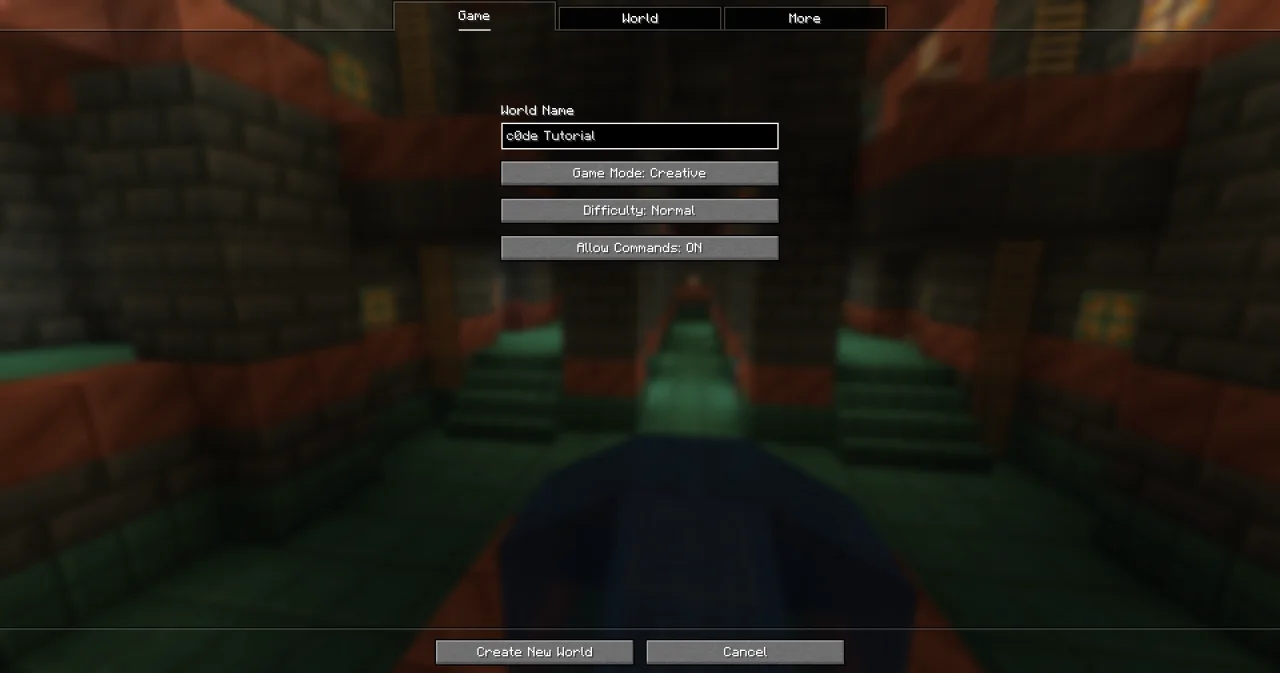
Build a small base, or use a spot you like. That's where your computer will stand.
Your first blocks
Open the creative inventory. The tab c0de (its icon is a wrench) holds all blocks and items of c0de: the trigger blocks, the tools, the display blocks and laptops, the language blocks and the data items.
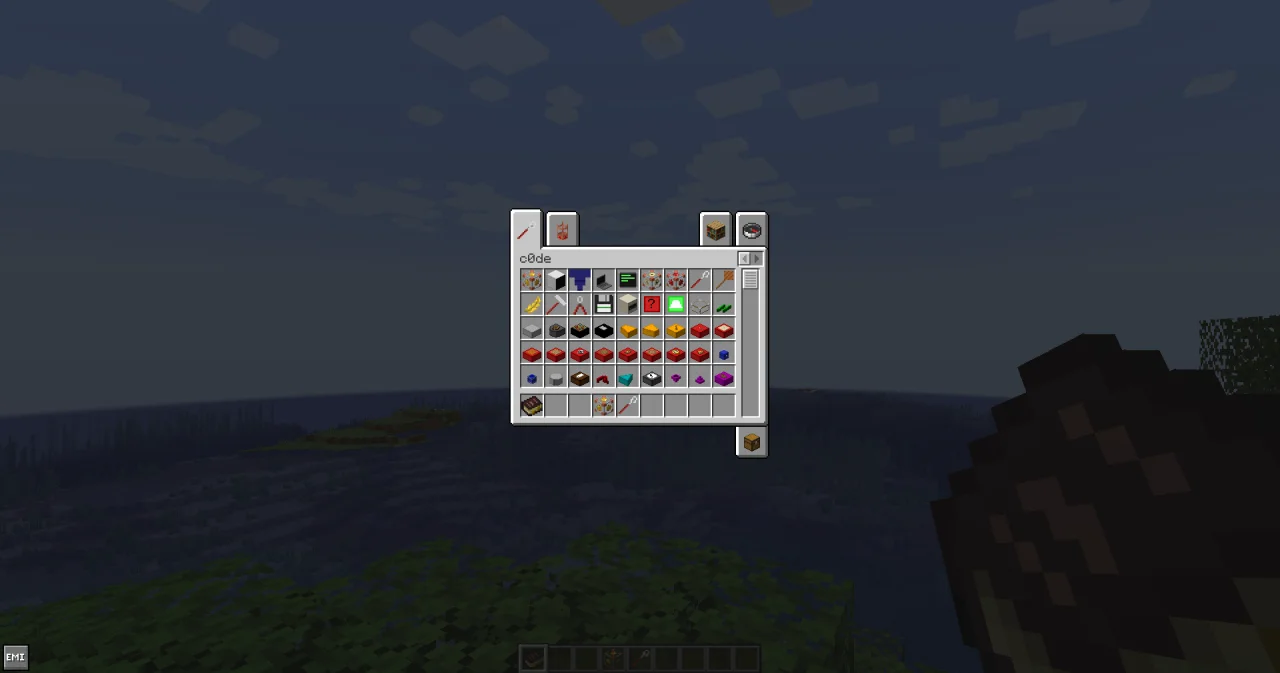
Take a trigger block and a wrench. A trigger block starts programs; the wrench takes you to the place where programs live.
In survival mode, you would craft them from vanilla materials. The recipes are in the chapter Tools and items of the guide.
A tour of the c0de dimension
Place the trigger block somewhere in your base. Right-click it with the wrench. You are teleported into the c0de dimension. As this trigger block isn't set up yet, you land in front of the first free sheet.
Look around:
- The floor looks like old computer paper with green and white stripes. Each strip is a sheet. A sheet is 32 blocks wide and runs south without end. Every sheet holds at most one program.
- The black floor outside the sheets belongs to nobody.
- The sheet number: north of the corner of each sheet, the floor shows the number of the sheet, its coordinates and its owner. The first player who builds on an empty sheet owns it.
- Lines: a program starts at the north end of a sheet and runs south. Each row of blocks across the sheet is a line. The first line is line 0.
- The code area: the blocks of a program lie between x=5 and x=28, counted from the west edge of the sheet. So a line holds at most 24 blocks.
- The cursor rail at x=4 is a gray rail. When a program runs, a glowing cursor moves along it and shows which line is working right now.
- Line numbers appear at x=2 as soon as a line has blocks. Their color tells you if the line is right: dark green is correct, dark yellow is not finished yet, dark red is wrong.
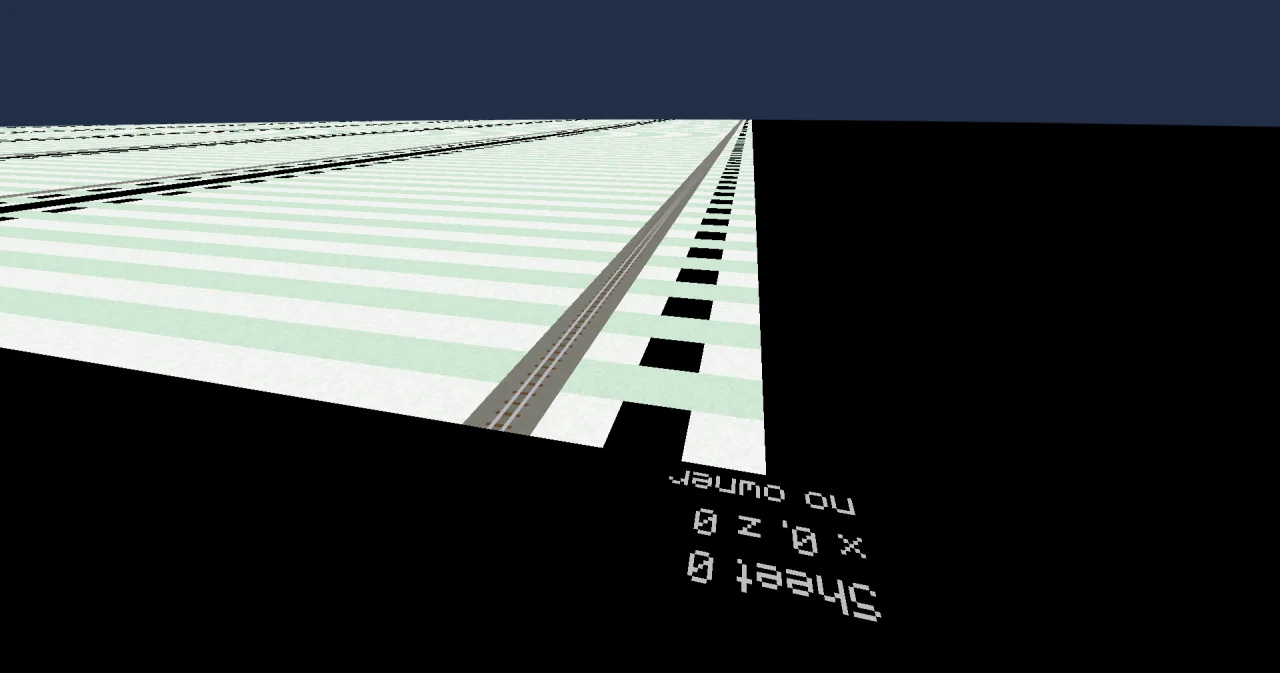
The dimension has no mobs, no weather and no night. To leave it, right-click the black floor with an empty hand. You return to the place where you entered.
How to read the programs
On these pages, programs are written as text. In the game, you build them from blocks. Each line of text is one line on the sheet. Here is the program of the next lesson; you don't have to build it yet:
PROGRAM sign
NOOP
NOOP
FUNCTION welcome
BEGIN
    CALL CLS
    CALL PRINT
        PARAMETER value "Welcome to my base!" ;
END FUNCTION
Read it like this:
- Words in capitals, like
PROGRAM,FUNCTIONandCALL, are keyword blocks. The first block of a line is always a keyword block. It decides what the line does. - Names in lower case, like
signandwelcome, are LABEL blocks. Some names are in capitals too, likePRINT; they are the names of things c0de already knows. - Numbers and text in quotes, like
42or"Welcome to my base!", are LITERAL blocks. They hold a value. - Symbols, like
+,⊕and;, are OPERATOR blocks. - Four spaces at the start of a line mean one block further east (to the right).
CALL CLSstarts at x=6, not at x=5.
Each lesson also tells you, line by line, which block goes where.
Try it yourself
- Go back into the c0de dimension and find the number of the sheet in front of you. Remember it: your first program will live there.
Solution
Walk to the north end of the sheet. North of its west corner, on the black floor, you see its number, its coordinates and its owner. The sheet is still empty, so it has no owner yet. On a new world, it is usually the first sheet; in a world where other programs exist, it is the first free one.
Read more
- Getting started: the dimension, sheets, line numbers and placing blocks
- Reading the examples: the text notation
- Tools and items: the recipes of all blocks and tools
- Tutorials: the world of the tutorials